
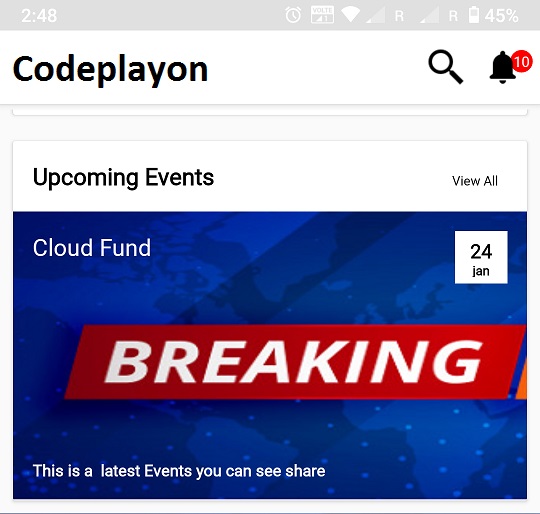
Hii Everyone in the Android Article I am working with Actionbar. In this tutorial, you can learn How to create a transparent action bar with a back button. Also, you can learn how to use the Action bar title for the screen.
Android Working with an Action bar to How to create a transparent action bar with a back button.
- Add Action Bar Title,
- Android Actionbar Logo
- Android Actionbar BackPreesed Button,
- Actionbar Notification Icons
- Action Bar With SearchView.
- Transparent Action bar.
- Android ACTION_BAR_OVERLAY
Android How to Add Title in Action_Bar.
androidx.appcompat.app.ActionBar actionBar = getSupportActionBar();
actionBar.setHomeButtonEnabled(true);
actionBar.setTitle("codeplayon");
Android How to Add Icon in Action_Bar.
Toolbar toolbar = (Toolbar) findViewById(R.id.toolbar);
setSupportActionBar(toolbar);
getSupportActionBar().setIcon(R.drawable.action_icons);
Android How to Add Back button in ActionBar.
androidx.appcompat.app.ActionBar actionBar = getSupportActionBar();
actionBar.setHomeButtonEnabled(true);
actionBar.setDisplayHomeAsUpEnabled(true);
actionBar.setTitle("Articles ");
And Create a Meth to target your back pressed Activity.
@Override
public boolean onOptionsItemSelected(MenuItem item) {
    switch (item.getItemId()) {
        case android.R.id.home:
            //Write your logic here
            Intent intent=new Intent(Current_Activity.this, Home_Activity.class);
            startActivity(intent);
            finish();
        default:
            return super.onOptionsItemSelected(item);
    }
}
Android how to Add Notification Icons in ActionBar.
 @Override
    public boolean onCreateOptionsMenu(Menu menu) {
        // Inflate the menu; this adds items to the action bar if it is present.
        MenuInflater inflater = getMenuInflater();
        inflater.inflate(R.menu.action_main, menu);
        final View notificaitons = menu.findItem(R.id.action_Notification).getActionView();
        itemMessagesBadgeTextView = (TextView) notificaitons.findViewById(R.id.badge_textView);
        IconButton iconButtonMessages = (IconButton) notificaitons.findViewById(R.id.badge_icon_button);
        iconButtonMessages.setTextColor(getResources().getColor(R.color.White));
        iconButtonMessages.setOnClickListener(new View.OnClickListener() {
            @Override
            public void onClick(View v) {
//                Intent intent =new Intent(Home_Activity.this, Notifications.class);
//                startActivity(intent);

            }
        });

        return true;
    }
Create a Menu XML file and add menu icons.
<menu xmlns:android="http://schemas.android.com/apk/res/android"
    xmlns:app="http://schemas.android.com/apk/res-auto"
    xmlns:tools="http://schemas.android.com/tools"
    tools:context=".MainActivity">


    <item
        android:id="@+id/action_search"
        android:orderInCategory="100"
        android:title="Search"
        android:icon="@drawable/icons_search"
        app:showAsAction="ifRoom"></item>
    <item
        android:id="@+id/action_Notification"
        android:orderInCategory="200"
        android:title="Notification"
        app:actionLayout="@layout/notification"
        app:showAsAction="ifRoom"></item>
</menu>
Create a Notification Count and Icons Layout file.
<RelativeLayout xmlns:android="http://schemas.android.com/apk/res/android"
    android:layout_width="wrap_content"
    android:layout_height="wrap_content"
    android:paddingRight="5dp"
    android:orientation="vertical">
    <TextView
        android:id="@+id/badge_textView"
        android:layout_width="wrap_content"
        android:layout_height="wrap_content"
        android:text="10"
        android:padding="3dp"
        android:layout_marginLeft="20dp"
        android:gravity="center"
        android:textColor="#FFF"
        android:textSize="11sp"
        android:background="@drawable/count" />

    <com.joanzapata.iconify.widget.IconButton
        android:layout_width="30dp"
        android:layout_height="30dp"
        android:textColor="@color/White"
        android:background="@drawable/icons_notification"
        android:id="@+id/badge_icon_button"/>
</RelativeLayout>
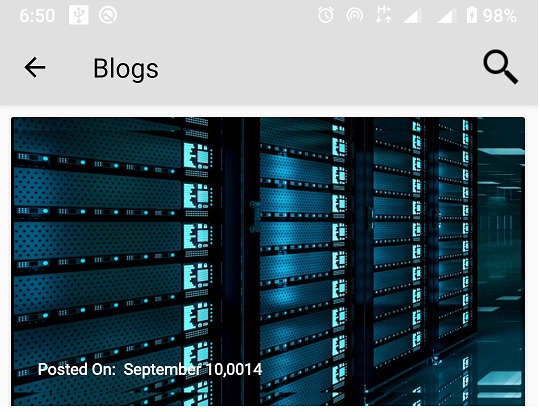
Android how to add searchView in Actionbar.
public class Home extends AppCompatActivity implements SearchView.OnQueryTextListener{
@Override
public boolean onCreateOptionsMenu(Menu menu) {
    // Inflate the menu; this adds items to the action bar if it is present.
    getMenuInflater().inflate(R.menu.search_bar, menu);
    // Retrieve the SearchView and plug it into SearchManager
    final SearchView searchView = (SearchView) MenuItemCompat.getActionView(menu.findItem(R.id.search_view));
    SearchManager searchManager = (SearchManager) getSystemService(SEARCH_SERVICE);
    searchView.setSearchableInfo(searchManager.getSearchableInfo(getComponentName()));
    searchView.setOnQueryTextListener(this);

    return true;
}

@Override
public boolean onQueryTextSubmit(String query) {
    return false;
}
@Override
public boolean onQueryTextChange(String newText) {
    if(rAdapter==null){
    }else {
        String text = newText;
        rAdapter.filter(text);
    }
    return false;
}
Create a Menu layout file
<?xml version="1.0" encoding="utf-8"?>
<menu xmlns:android="http://schemas.android.com/apk/res/android"
    xmlns:app="http://schemas.android.com/apk/res-auto">

    <item
        android:id="@+id/search_view"
        android:icon="@drawable/icons_search"
        android:title="search"
        app:actionViewClass="androidx.appcompat.widget.SearchView"
        app:showAsAction="ifRoom|collapseActionView" />
</menu>
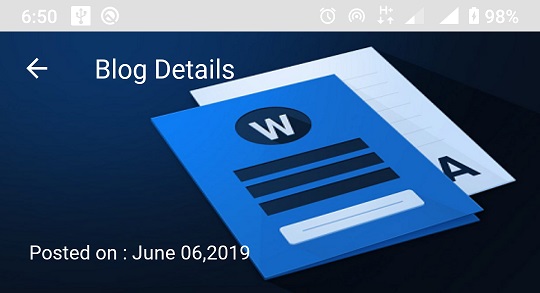
Android Transparent Action bar with ACTION_BAR_OVERLAY.
public class Blog_Details extends AppCompatActivity {

    Button Share_BlogBtn;
    FragmentManager fm = getSupportFragmentManager();
    @Override
    protected void onCreate(Bundle savedInstanceState) {
        super.onCreate(savedInstanceState);
        supportRequestWindowFeature(Window.FEATURE_ACTION_BAR_OVERLAY);
        setContentView(R.layout.activity_blog__details);

        androidx.appcompat.app.ActionBar actionBar = getSupportActionBar();
        actionBar.setBackgroundDrawable(new ColorDrawable(Color.TRANSPARENT));
        actionBar.setHomeButtonEnabled(true);
        actionBar.setDisplayHomeAsUpEnabled(true);
        final Drawable upArrow = getResources().getDrawable(R.drawable.baseline_arrow_back_24);
        upArrow.setColorFilter(Color.parseColor("#FFFFFF"), PorterDuff.Mode.SRC_ATOP);
        getSupportActionBar().setHomeAsUpIndicator(upArrow);
        actionBar.setTitle(Html.fromHtml("<font color='#FFFFFF'>Blog Details</font>"));
    }
Android Action Bar custom Icons and Title Color.
final Drawable upArrow = getResources().getDrawable(R.drawable.baseline_arrow_back_24);
upArrow.setColorFilter(Color.parseColor("#FFFFFF"), PorterDuff.Mode.SRC_ATOP);
getSupportActionBar().setHomeAsUpIndicator(upArrow);
actionBar.setTitle(Html.fromHtml("<font color='#FFFFFF'>Blog Details</font>"));