
I’ll be honest, I didn’t start using voice changers for serious reasons. Everything started when we were playing a bit late at night with some of my friends. We were getting a little bit of a buzz from it. We felt bored of same voices, same responses and the same jokes.
So, some point I thought, “You’ve got to do something different with that voice chat. Not anything complicated, just something to bring back some fun in conversations. This is when I thought; let’s try iTop Voicy, just for some fun and to switch voices during chatting.
At first, it seemed like just another app I didn’t think I need it. However, when I used it in real conversations, group chats with friends, in gaming lobbies and even Discord calls, it was fun.
iTop Voicy: A Fun Way to Change Voice in Real-Time
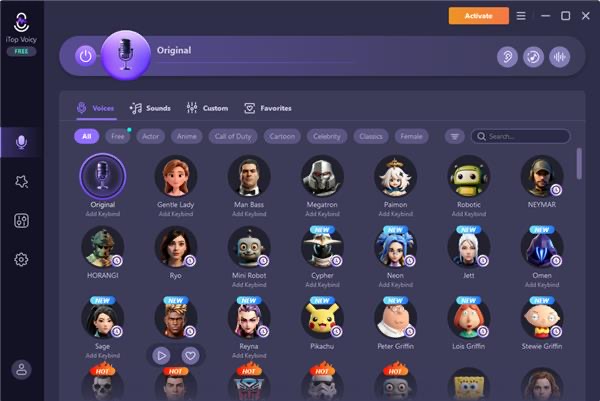
iTop Voicy is a real-time voice changer for PC that modifies your voice while you speak.
Instead of recording and editing audio, it works instantly with your microphone input and sends the changed voice directly to apps like Discord, games, or streaming tools.
Some of its main features include real-time voice change, AI voice effects, soundboard, noise reduction and more.
I mainly tested it in casual voice chats and gaming sessions where humor and quick reactions matter more than anything else.
Why I Wanted to Try It for Pranks?
I was not trying to do anything extreme. My goal was simple, to make conversations fun again.
In most group calls, people get used to each other’s voices very quickly. After a while, reactions become predictable. I wanted to break that pattern a bit.
I also noticed something else: during gaming sessions, some moments feel flat when everyone sounds the same all the time. A small voice change can actually shift the mood of the whole chat.
So I thought, why not test it and see if it actually makes conversations more entertaining?
How I Used iTop Voicy for Pranks and Fun Chats?
Here is the exact process I followed while using it in real conversations.
Install and Launch the App
I downloaded the installer of iTop Voicy and installed it. The process took only a few minutes. Most amazingly everything was ready to use when I opened it.
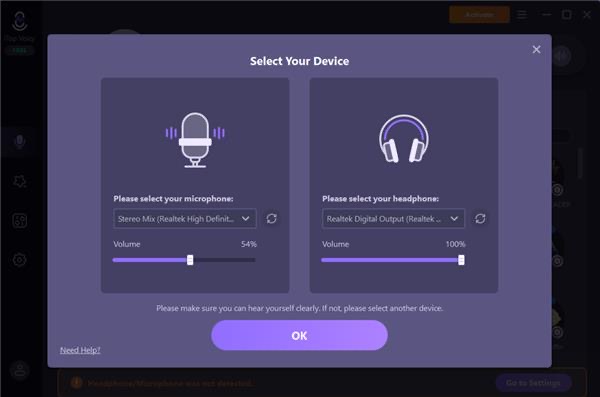
Set Up Microphone Input
I selected my microphone and tested my voice. At first, I noticed my original voice was slightly echoing, so I adjusted the input level. After that, the audio became much clearer.
This step matters because any voice effect depends on clean input.
Pick Voice Effects for Pranks
This was the fun part. I went through different voice styles and tested them one by one. Some were funny, some sounded robotic, and a few were surprisingly realistic.
I avoided anything too extreme at first because I wanted reactions, not confusion.
In my case, I used:
- A slightly higher pitch voice for surprise moments
- A deeper voice for fake “serious announcements”
- A robotic tone for random jokes in group chats
Connect to Discord and Game Chat
Next, I opened Discord and set iTop Voicy as my input device.
Then I joined a gaming voice channel with friends. The moment I started speaking in a different voice, they immediately noticed something was off, in a funny way.
That’s when the real testing began.
What Happened When I Used It in Real Conversations?
The reactions were honestly the best part.
At first, my friends were confused. They thought someone else had joined the call. After a few seconds, they realized it was me, but the reactions kept going for a while.
During gaming sessions, I used different voices at different moments:
- Fake “NPC-style” voice during serious gameplay
- Funny high-pitch voice during wins
- Deep dramatic voice when something unexpected happened
It completely changed the mood of the chat. People were laughing more, reacting faster, and staying more engaged.
But I also noticed something important and that is timing matters. If you overuse it, the effect becomes less funny.
Features That I Actually Used During Pranks
These were the features that stood out during real use.
Real-Time Voice Changing
This is the main feature which I used the most during my pranks. I could switch voices instantly while talking, which made reactions feel natural instead of delayed or edited.
There was no noticeable lag, which is important during fast conversations.
AI Voice Effects
Some effects worked better than others for humor. I found that simple voice changes worked best instead of overly dramatic ones. Subtle changes made people question what was happening, which made it funnier.
Soundboard for Quick Reactions
The soundboard added short audio clips during conversations.
I used it for quick reactions like fake applause or random sound effects. It made group chats feel more dynamic.
Noise Reduction
This helped reduce background noise while speaking.
Even during gaming sessions with keyboard sounds, my voice stayed clearer, which made jokes and reactions easier to understand.
Pros and Cons from My Experience
After using it in real chats, here’s my honest breakdown.
What I Liked
- Easy to set up and start using quickly
- Real-time changes worked without delay
- Made conversations more fun and interactive
- Worked well in gaming and Discord calls
- Sound effects added extra humor to chats
What I Didn’t Like
- Needs a bit of testing to find the best voices
- Depends on how good your microphone is
Final Thoughts
After trying iTop Voicy in real conversations, I can say it definitely adds a fun layer to voice chats.
It’s not something I would use all the time, but for gaming nights, group calls, or casual pranks, it does exactly what it is meant to do. And that is to make conversations more entertaining.
The real-time voice change, simple setup, and variety of effects make it easy to jump in and start using without much effort. The key is not overdoing it and using it at the right moments.
For me, it turned ordinary voice chats into something much more lively and unpredictable.