
I never thought I’d get this worked up over deleted files. Then I went through my third botched install that left trash everywhere and realized I needed something…better. Better uninstallers came in the form of IObit Uninstaller, and today I’m going to show you exactly how I use it.
Let me show you how I use it.

The Problem I Kept Running Into
Every few months, my laptop would inexplicably slow down for seemingly no reason. I’d dig through my installed programs, come up empty-handed, and go on my way. What I didn’t realize was that the actual problem was lurking underneath… in leftover registry entries and random folders from programs I had uninstalled long ago.
Windows uninstaller will rid you of the program, but not the ghost of the program that gets left behind. Things like random folders, registry keys, and files remain behind, building up over time until you notice your system isn’t performing like it used to (especially if the program didn’t uninstall correctly).
These remnants may not seem like much on their own, but over time they can cause trouble with fresh installs of the same program, make other programs “confused” if they’re not careful, and take up space you aren’t aware you’re losing. The kicker is, I found this out the hard way.
Reinstalling the video editing program kept giving me the same error message. I was young and foolish, so I didn’t realize registry keys from the old editor were still referenced in my computer’s registry, despite the program being long gone.
Why I Picked IObit Uninstaller
I tried a few uninstallers before stumbling upon this one. A lot of free cleanup apps either gloss over blatant leftovers or have interfaces I don’t gel with. As soon as I installed IObit Uninstaller, it scanned my computer and highlighted leftover files as well as programs I can uninstall just like that. No digging through folders or wondering if I should delete specific registry keys on my own.
However, the true selling point for me was the Force uninstall feature. Say you install a program and it crashes during installation. You can’t uninstall it through normal means because Windows doesn’t recognize it. Force uninstall not only removes the program itself, but it also scrapes out all the leftover bits the regular Windows uninstall leaves behind. I’ve had this happen to me several times with stubborn programs, and something like this cuts the Gordian knot for me.
What’s more, I’ve used it on programs that were improperly installed or removed, and it cleans up the registry for you. This sounds great in theory, but it used to scare me a little. I never felt comfortable diving into my registry editor and messing with stuff on my own. IObit Uninstaller removes the opportunity for that mistake.
My Actual Process, Step by Step
Ok, now you know my why, let me show you how I put IObit Uninstaller, a powerful uninstaller for Windows, to work:
- First, I open the program and allow it to scan through my installed programs (takes all of 10 seconds).
- Next, I like to glance over where it highlights leftover files, just so I know how much space I can potentially free up by uninstalling certain programs.
- Then I click on the program I want to uninstall, click uninstall, and opt in for the restore point just in case.
- Finally, I wait for the magic to happen and allow it to delete all the remaining shrapnel left over from the uninstall process.
- Boom. All done! I even ran a second scan post-uninstall, which I didn’t realize some other cleaners offered until I ran into issues with one. It used to seem redundant, but improperly installed programs can leave traces behind that a second scan catches.
What Surprised Me the Most
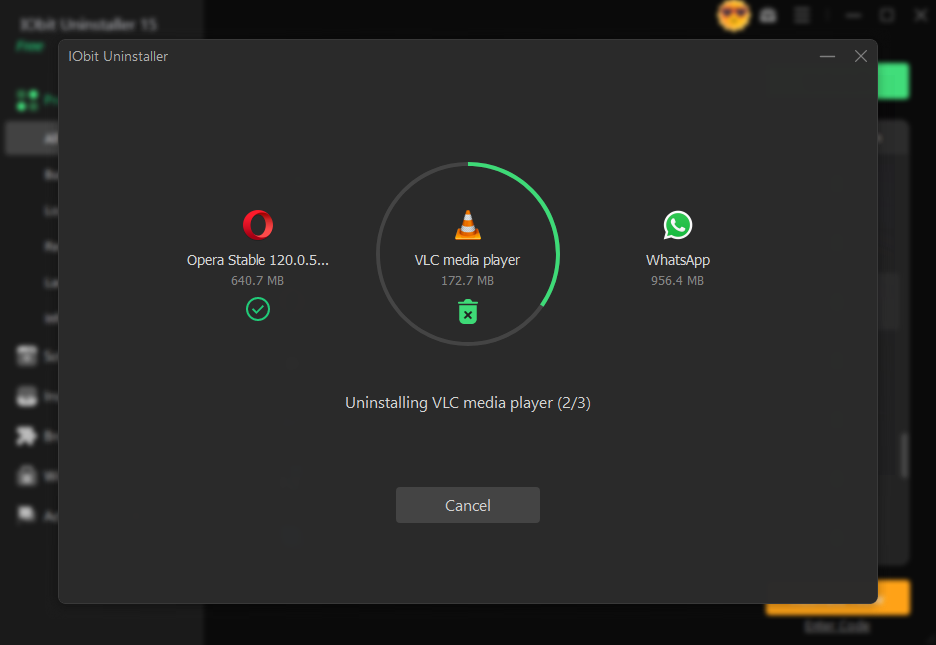
While I thought using the batch uninstall feature would be helpful, I did not realize just HOW much of a timesaver it would be. I can uninstall multiple programs at once without clicking through each uninstall menu. Not only does this allow me to clean out programs I no longer use or need seasonally, but it keeps my list clean moving forward. (One commenter said they were able to recover 23 GB of space and fix their slow boot problem by using this method.)
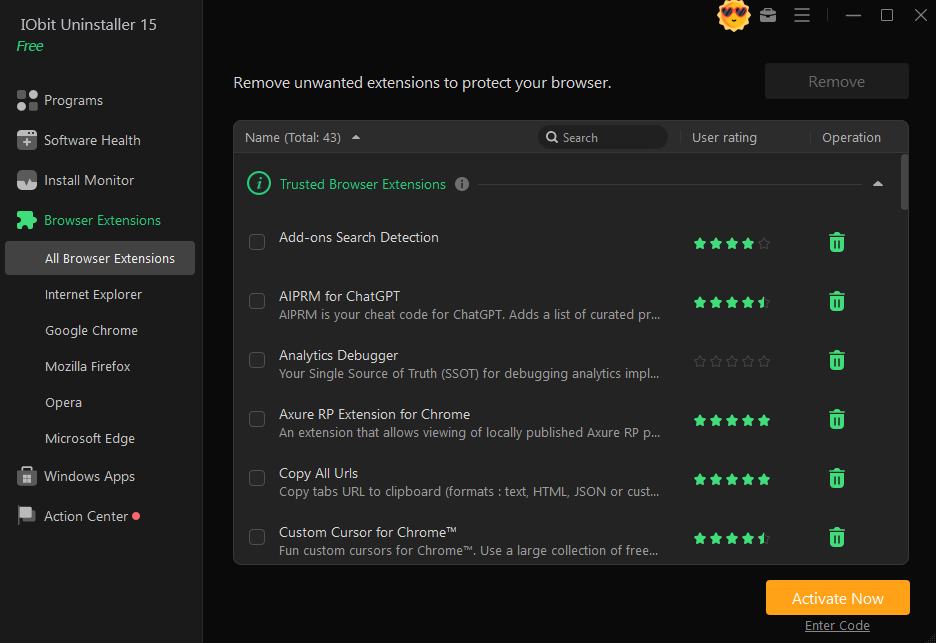
I also didn’t realize how much browser crap was bogging me down until I used the plugin management feature. With this, you can view every extension and toolbar installed across YOUR browsers. I deleted several I never use, honestly, which kept me browsing faster than I remembered, all because I was cleaning up uninstalled leftovers.
A Few Things to Know Before You Try It
IObit Uninstaller has a free version that does everything I, or most other home users, would need. Leftover deletion and forced uninstall are included in the free version. If you want upgrade-only features like auto-update notifications or monitoring what programs are installing, you can do so by upgrading to Pro. Since I test more software on my laptop than the average user, I started with the free version, then upgraded when I realized just HOW much uninstalling/removing programs I did weekly.
Another thing I liked was the prompt it gives you BEFORE uninstalling to create a restore point. Force uninstall will permanently delete any uninstall remnants that your PC might have tucked away, so this hopefully gives you a failsafe should something go wrong. I never had to use it, but now I don’t stress if I uninstall a stubborn program.
Where This Leaves Me Now
As I said, my computer runs MUCH smoother now compared to this time last year. I credit that to taking better care of my overall uninstall hygiene rather than looking for a silver bullet. Don’t get me wrong though, having a program this easy to use and effective has MADE my workflow better when it comes to cleanup. PCMag reviewed an older version of this software and deemed it the best Windows uninstaller utility they tested. I haven’t had any reason to disagree with that statement.
If you install a lot of software for work or play (AKA games), experience frequent corrupted installs, or just have a lot of program buildup over the years, consider grabbing this on your next computer cleanup day. I never thought about how much installing and uninstalling games over the years could affect my PC’s performance until it was too late. Now I make it a point to clean out leftovers myself, and my PC thanks me for it.