
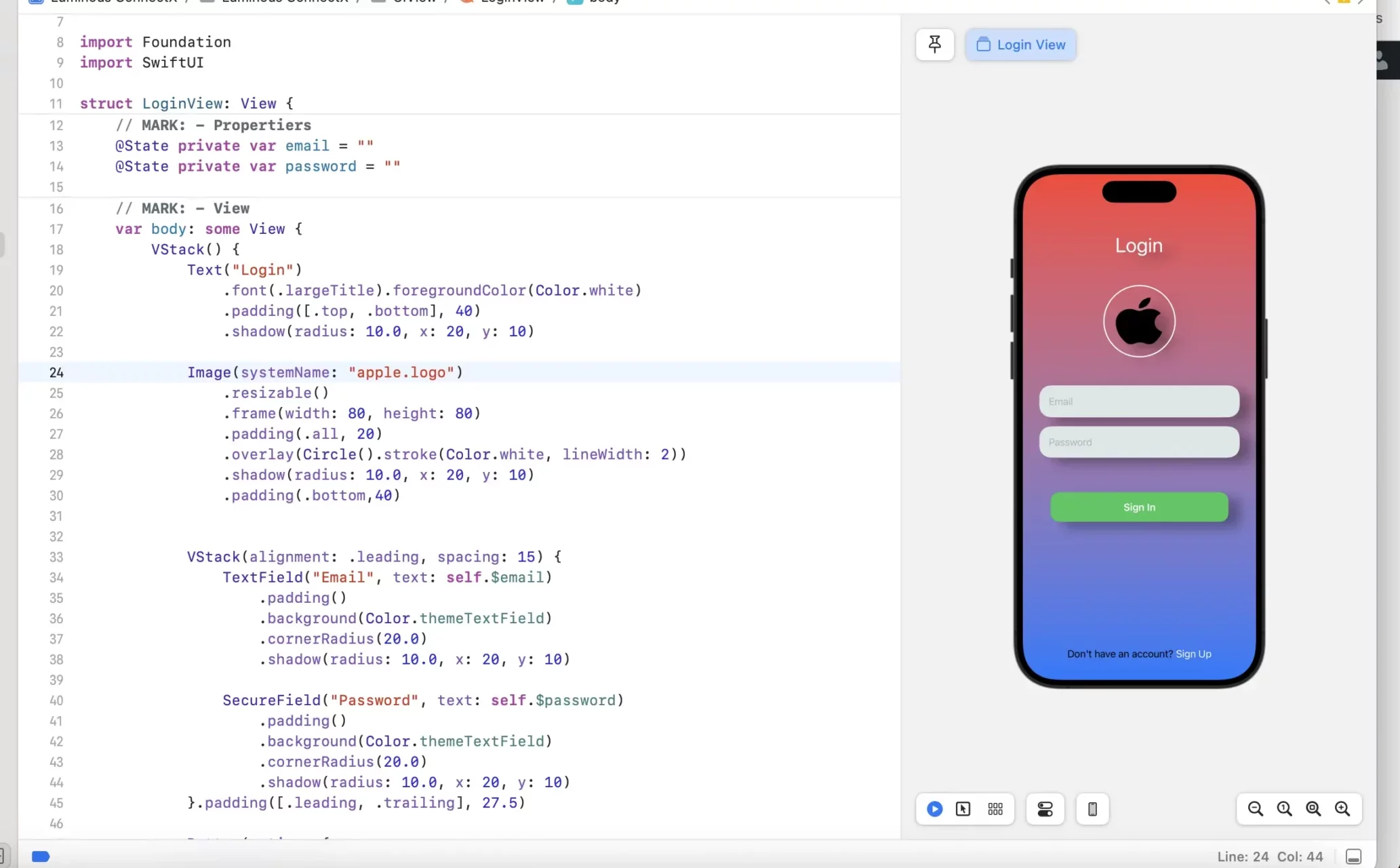
Hi developer in this iOS swiftUi tutorial i am share how to design a login page in swiftUi. using SwiftUI Button, Textfield & image. like gmail login page, facebook login page etc. With make customized button ui and image.
What is Login page in SwiftUi .
A login page specifies the login URL in a web application that users must pass through to get to the authenticated URLs at the heart of the application. Authenticated URLs are URLs that become accessible to users only after they successfully log in to the login URL.
A login page is a door that users must open in order to get the best out of their user experience with a website. It is the starting point of navigating a website in a personalized manner.
so let’s start to create a login page Ui you just follow below code.
mychart login page swiftUi Example.
let’s create a new ios project selecting with swifitUi and follow the below code. in the body view firstly use the Vstack and then use a Text after the showing a image.
SwiftiUI Text For App Tital
   Text("Login")

                .font(.largeTitle).foregroundColor(Color.white)
                .padding([.top, .bottom], 40)
                .shadow(radius: 10.0, x: 20, y: 10)
Swifit UI Image with Circle for Logo
Image(systemName: "apple.logo")

                .resizable()

                .frame(width: 80, height: 80)

                .padding(.all, 20)

                .overlay(Circle().stroke(Color.white, lineWidth: 2))

                .shadow(radius: 10.0, x: 20, y: 10)

                .padding(.bottom,40)
TextField SwiftUI for Enter Email ID
TextField("Email", text: self.$email)

                    .padding()

                    .background(Color.themeTextField)

                    .cornerRadius(20.0)

                    .shadow(radius: 10.0, x: 20, y: 10)
SwiftUI SecureField for Password
SecureField("Password", text: self.$password)

                    .padding()

                    .background(Color.themeTextField)

                    .cornerRadius(20.0)

                    .shadow(radius: 10.0, x: 20, y: 10)

            }.padding([.leading, .trailing], 27.5)
SwiftUI Button for Login Button
Button(action: {


            }) {

                Text("Sign In")

                    .font(.headline)

                    .foregroundColor(.white)

                    .padding()

                    .frame(width: 300, height: 50)

                    .background(Color.green)

                    .cornerRadius(15.0)

                    .shadow(radius: 10.0, x: 20, y: 10)

            }.padding(.top, 50)
also i am using VStack and HStack for mange the UI field vertical and horizontally. you can find complete code below.
mychart login page Full Source code Example.
import Foundation

import SwiftUI

struct LoginView: View {

    // MARK: - Propertiers

    @State private var email = ""

    @State private var password = ""


    // MARK: - View

    var body: some View {

        VStack() {

            Text("Login")

                .font(.largeTitle).foregroundColor(Color.white)

                .padding([.top, .bottom], 40)

                .shadow(radius: 10.0, x: 20, y: 10)


            Image(systemName: "apple.logo")

                .resizable()

                .frame(width: 80, height: 80)

                .padding(.all, 20)

                .overlay(Circle().stroke(Color.white, lineWidth: 2))

                .shadow(radius: 10.0, x: 20, y: 10)

                .padding(.bottom,40)


            VStack(alignment: .leading, spacing: 15) {

                TextField("Email", text: self.$email)

                    .padding()

                    .background(Color.themeTextField)

                    .cornerRadius(20.0)

                    .shadow(radius: 10.0, x: 20, y: 10)


                SecureField("Password", text: self.$password)

                    .padding()

                    .background(Color.themeTextField)

                    .cornerRadius(20.0)

                    .shadow(radius: 10.0, x: 20, y: 10)

            }.padding([.leading, .trailing], 27.5)


            Button(action: {


            }) {

                Text("Sign In")

                    .font(.headline)

                    .foregroundColor(.white)

                    .padding()

                    .frame(width: 300, height: 50)

                    .background(Color.green)

                    .cornerRadius(15.0)

                    .shadow(radius: 10.0, x: 20, y: 10)

            }.padding(.top, 50)


            Spacer()

            HStack(spacing: 0) {

                Text("Don't have an account? ")

                Button(action: {}) {

                    Text("Sign Up")

                        .foregroundColor(.white)

                }

            }

        }

        .background(

            LinearGradient(gradient: Gradient(colors: [.red, .blue]), startPoint: .top, endPoint: .bottom)

                .edgesIgnoringSafeArea(.all))


    }

}

extension Color {

    static var themeTextField: Color {

        return Color(red: 220.0/255.0, green: 230.0/255.0, blue: 230.0/255.0, opacity: 1.0)

    }

}

struct LoginView_Previews: PreviewProvider {

    static var previews: some View {

        LoginView()

    }

}
read more android, iOS , Flutter tutorial and example on codeplayon. happy coding if it helpful for your learn share and explore more.
Read More Tutorial