
I finally did it. After months of saving up and watching build guides on YouTube, I put together my new PC from scratch. It was exciting to have a new motherboard, a fresh CPU, and a GPU that I had been eyeing for a while.
Then I booted up.
Windows loaded fine, but something felt off. The screen looked a little rough. My USB devices weren’t acting right, and my audio was completely silent. I knew what the problem was – drivers!
I’ve done things before, and I know the drill. You go to the Intel site for chipset drivers. Then, Nvidia for the GPU. Then Realtek for audio. Then your motherboard manufacturer’s site for everything else. You spend an hour just figuring out which model you have and which version to download. It’s a mess.
My Experience with Driver Booster
This time, I tried something different. A friend had mentioned Driver Booster, and I wanted to try it. Honestly, I wish I had done it sooner.
I was able to find 20+ missing drivers in seconds.
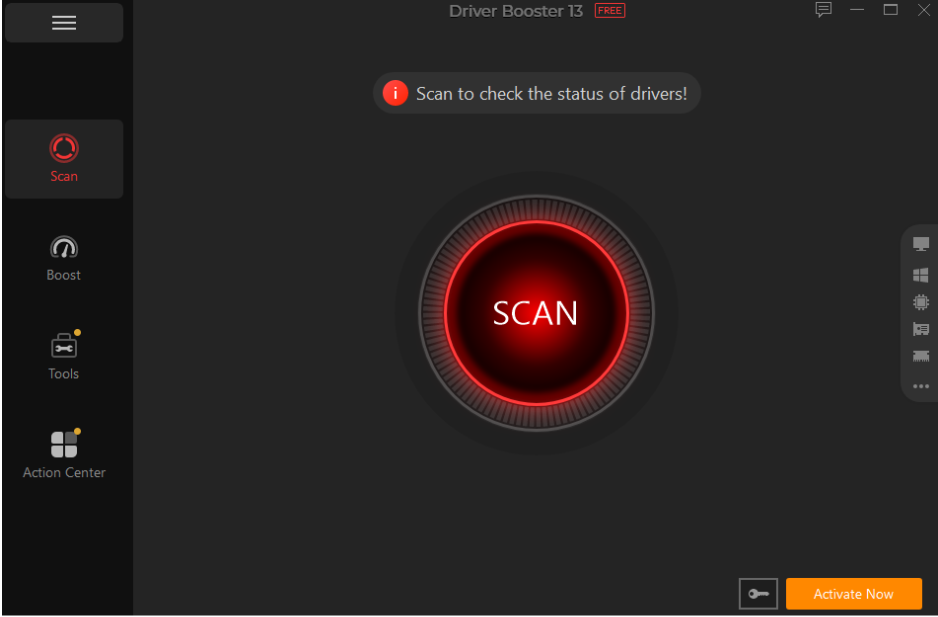
I downloaded and installed Driver Booster in about two minutes. Then I hit the scan button. I expected a wait, but it was able to find all drivers within a few minutes.
The scan took mere seconds. Seriously. Less than a minute. It provided me with a comprehensive list. Missing drivers, outdated drivers, and the priority level for each. Color-coded. Legible. I didn’t have to guess what I should prioritize.
I clicked “Update All” and watched it do its thing. Downloaded and installed every driver I needed automatically. No tab switching. No visiting manufacturer websites. No digging through driver folders to make sure I got the right version. It just works.
When it finished, my display looked crisper. My speakers worked. My mouse and keyboard were responding as they should be. My machine seemed to breathe again.
That scan alone was reason enough to download it.
The Backup and Restore Feature Is Great, Too
This one kind of snuck up on me. I didn’t think I’d use it… But boy am I going to keep it enabled from here on out.
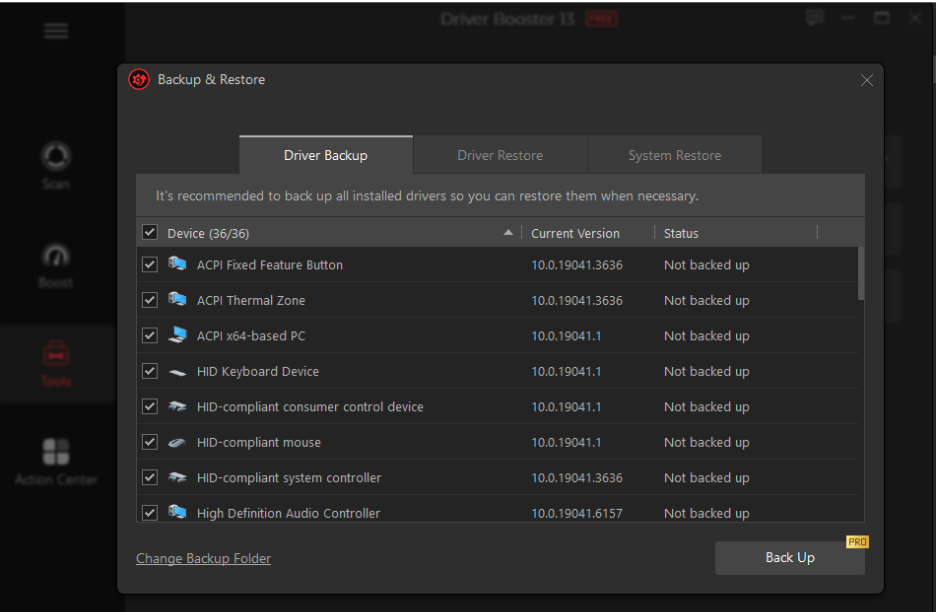
Driver Booster allows you to back up your current drivers BEFORE it updates them. Naturally, I enabled this as soon as I saw it. And boy am I glad I did.
About a few days into using my new PC, I decided to update my graphics driver. Let’s just say installing that driver didn’t go quite right. My screen began flickering after installation was completed. I’ll admit, I panicked. If this happened to me before downloading Driver Booster, I’d be scouring forums and doing a clean install of that driver manually.
Instead, I opened up Driver Booster, navigated to the restore section, and rolled back my GPU driver within 60 seconds. The flickering stopped. Done.
If you install Driver Booster just for that feature, you’re doing yourself a favor. Driver issues don’t just affect new builds. Something can go wrong with an update at any time and randomly break your device. It’s great to have that restore point readily available inside the app.
Kind of a feature you don’t think about until you desperately need it. But you’re thankful it’s there when that time comes.
The UI Is Clean And Simplifies Everything
I wanted to touch on the interface just because it honestly is one of the better ones I’ve seen in this category.
Most manufacturer websites are created by programmers who assume you know what you’re doing. They don’t make it intuitive for the everyday person. NVIDIA has come a long way with its website. But if you’ve ever used Intel’s download center… It’s like they’re designing it to look like a 2009 filing cabinet. And smaller hardware manufacturers? Good luck figuring those out.
Driver Booster lays everything front and center. The home screen details the results of your scan. You can see the driver name, your current version vs what you will update to, right on the main screen. There is even a status section that lets you know when you last scanned your PC and how many drivers require your attention.
It doesn’t feel bloated. Everything on the screen serves a purpose. Simplifying the process of updating drivers. I hate when apps make me dig through menus to find features. Driver Booster didn’t make me feel that way.
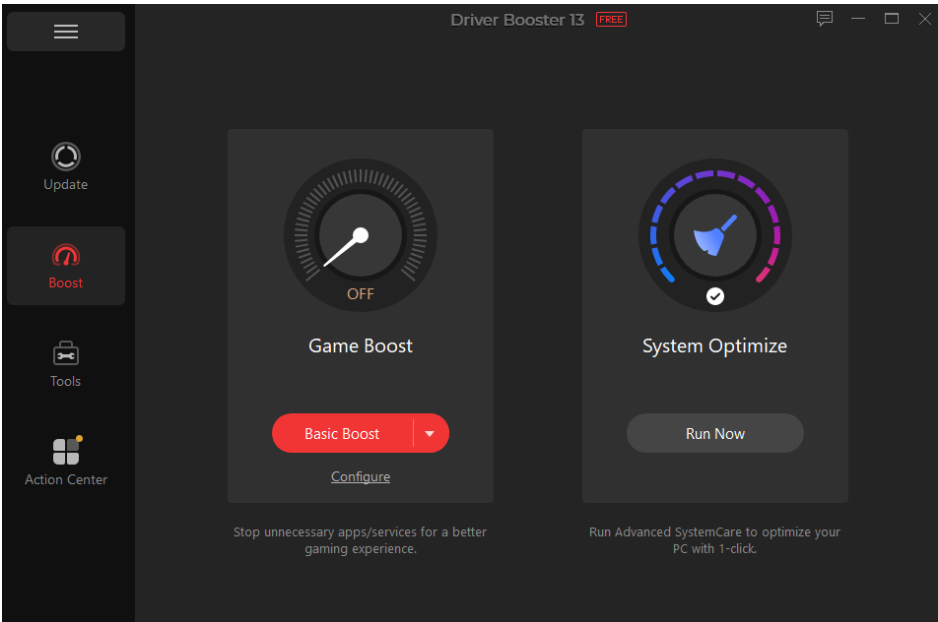
They even include a game boost feature. Before launching your game, Driver Booster can suspend background processes and optimize your resources. I used it with a couple of games I’ve been playing. I don’t know if my load times decreased by a ton, but they were snappier.
Again, for an app that’s meant to manage and update your drivers, it does a really nice job at going above and beyond.
Conclusion: My Honest Review After Using It For Days
I’ve had my new machine for a few days now. Everything is working great. No BSODs. No misbehaving hardware. No disappearing sound.
New build setups used to frustrate me. There’s always that window of time where everything isn’t working, and you have no clue why. Driver Booster lessened that window dramatically. What used to take me hours of swapping through sites, triple-checking I had the correct driver version, and rebooting countless times took me about 20 minutes.
Having that backup and restore feature really set my mind at ease. The UI made everything simple. But holy crap was that first scan amazing.
If you’re building a new PC, or even if you’ve had your computer for years and never took the time to check your drivers. Take a look at Driver Booster. Trust me when I say there are better ways of updating drivers. This is one of them.
And for me, Driver Booster was the first application I installed on my new build. It certainly deserved that privilege.