
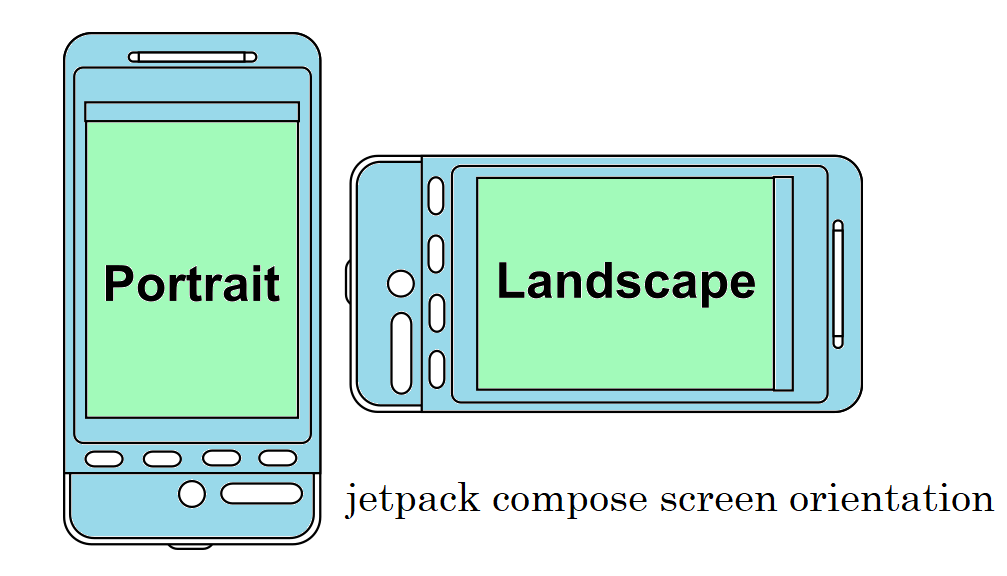
Handling configuration changes, such as screen rotations, is a common challenge in Android development. Configuration changes can cause your activity to be destroyed and recreated, which may lead to the loss of user data or state. In this blog, we will explore various strategies to handle configuration changes effectively to ensure a seamless user experience.
Understanding Configuration Changes
A configuration change occurs when the device’s current configuration changes, such as when the screen orientation changes, the keyboard is hidden or shown, or the language is changed. By default, Android restarts the activity to apply these changes, which calls the lifecycle methods: onDestroy(), onCreate(), and onStart().
Strategies to Handle Configuration Changes
1. Using onSaveInstanceState and onRestoreInstanceState
The simplest way to handle configuration changes is to save the activity state using onSaveInstanceState and restore it in onRestoreInstanceState or onCreate.
    override fun onSaveInstanceState(outState: Bundle) {
    super.onSaveInstanceState(outState)
    // Save data to outState bundle
    outState.putString("KEY", "value")
}

    override fun onCreate(savedInstanceState: Bundle?) {
    super.onCreate(savedInstanceState)
    setContentView(R.layout.activity_main)
    // Restore data from savedInstanceState bundle
    if (savedInstanceState != null) {
        val value = savedInstanceState.getString("KEY")
    }
}
2. Retaining Fragments
Fragments can be retained across configuration changes by calling setRetainInstance(true) in the fragment. This method prevents the fragment from being destroyed and recreated during a configuration change.
Example:
class MyFragment : Fragment() {

        override fun onCreate(savedInstanceState: Bundle?) {
        super.onCreate(savedInstanceState)
        // Retain this fragment across configuration changes
        retainInstance = true
        }
        }
3. ViewModel
Using ViewModel is a recommended approach for handling configuration changes. A ViewModel is designed to store and manage UI-related data in a lifecycle-conscious way, allowing data to survive configuration changes.
Example:
class MyViewModel : ViewModel() {
        val data: MutableLiveData<String> by lazy {
        MutableLiveData<String>()
        }
        }

class MyActivity : AppCompatActivity() {
private lateinit var viewModel: MyViewModel

        override fun onCreate(savedInstanceState: Bundle?) {
        super.onCreate(savedInstanceState)
        setContentView(R.layout.activity_main)
        // Obtain the ViewModel
        viewModel = ViewModelProvider(this).get(MyViewModel::class.java)
        // Observe ViewModel data
        viewModel.data.observe(this, Observer { value ->
        // Update UI with data
        })
        }
        }
4. Handling Configuration Changes Manually
You can handle configuration changes manually by specifying the configChanges attribute in your AndroidManifest.xml and overriding the onConfigurationChanged method.
Example:
<activity android:name=".MyActivity"
android:configChanges="orientation|screenSize">
</activity>
    override fun onConfigurationChanged(newConfig: Configuration) {
    super.onConfigurationChanged(newConfig)
    // Handle the configuration change
    if (newConfig.orientation == Configuration.ORIENTATION_LANDSCAPE) {
        // Handle landscape mode
    } else if (newConfig.orientation == Configuration.ORIENTATION_PORTRAIT) {
        // Handle portrait mode
    }
}
5. Saving UI State with View Binding or Data Binding
View Binding and Data Binding libraries can simplify state management. For example, you can use Data Binding to automatically update the UI when the underlying data changes, making it easier to restore the state after a configuration change.
Example:
    <!-- activity_main.xml -->
<layout xmlns:android="http://schemas.android.com/apk/res/android">
<data>
    <variable
        name="viewModel"
        type="com.example.app.MyViewModel" />
</data>
<LinearLayout
    android:layout_width="match_parent"
    android:layout_height="match_parent"
    android:orientation="vertical">
    <TextView
        android:layout_width="wrap_content"
        android:layout_height="wrap_content"
        android:text="@{viewModel.data}" />
</LinearLayout>
</layout>
class MyActivity : AppCompatActivity() {
private lateinit var binding: ActivityMainBinding
private lateinit var viewModel: MyViewModel

        override fun onCreate(savedInstanceState: Bundle?) {
        super.onCreate(savedInstanceState)
        binding = DataBindingUtil.setContentView(this, R.layout.activity_main)
        viewModel = ViewModelProvider(this).get(MyViewModel::class.java)
        binding.viewModel = viewModel
        binding.lifecycleOwner = this
        }
        }
Conclusion
Handling configuration changes effectively is essential for creating a robust and user-friendly Android application. Whether you choose to use onSaveInstanceState, retain fragments, leverage ViewModel, handle changes manually, or utilize data binding, each method has its advantages and is suitable for different scenarios. By implementing these strategies, you can ensure that your application remains stable and provides a seamless experience to your users, even during configuration changes.
For more tips and tutorials on Android development, stay tuned to our blog. If you have any questions or need further clarification, feel free to leave a comment below!
Read More :