
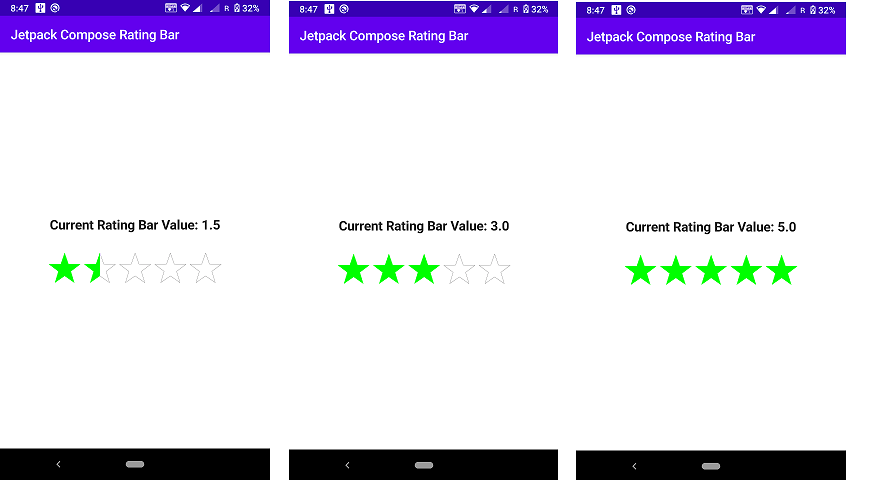
Hi, Developer in this jetpack composes I create an example. Jetpack composes a custom rating bar in android. Jetpack Compose is a great new declarative UI tool for Android that allows UI creation using Kotlin as a replacement for the cumbersome XML layouts.
This article will provide a straightforward demonstration of Jetpack Compose inside the context of a project. It also explains how to build a review rating bar in android.
Jetpack compose custom rating bar Example.
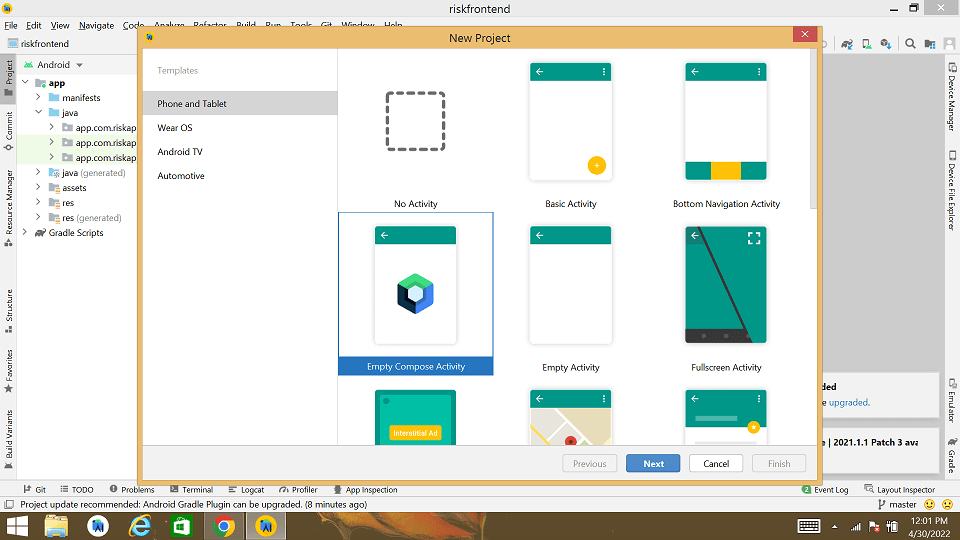
So let’s start to build follow below easy step. First, create a jetpack compose project and build it. To make a brand new app, you need to open Android Studio, select the File and then Create New A New Project In the wizard choose the empty Compose Activity. After that select Finish and a brand fresh Jetpack Compose project will be created.
After that add dependency in your Gradle build project.
Jetpack compose custom rating bar Souce code.
Here you can find source code and steps for making customer jetpack compose rating bar in android.
Gradle build Dependencies
dependencies {

    implementation 'androidx.core:core-ktx:1.7.0'
    implementation 'androidx.appcompat:appcompat:1.4.1'
    implementation 'com.google.android.material:material:1.5.0'
    implementation "androidx.compose.ui:ui:$compose_version"
    implementation "androidx.compose.material:material:$compose_version"
    implementation "androidx.compose.ui:ui-tooling-preview:$compose_version"
    implementation 'androidx.lifecycle:lifecycle-runtime-ktx:2.4.0'
    implementation 'androidx.activity:activity-compose:1.4.0'
    testImplementation 'junit:junit:4.+'
    androidTestImplementation 'androidx.test.ext:junit:1.1.3'
    androidTestImplementation 'androidx.test.espresso:espresso-core:3.4.0'
    androidTestImplementation "androidx.compose.ui:ui-test-junit4:$compose_version"
    debugImplementation "androidx.compose.ui:ui-tooling:$compose_version"
}
After adding Dependencies syn your project and after Successfully syn and follow below step
Step 1 Create a Kotlin Class Name CustomerRatingBar.
now make a new Kotlin call for customization rating bar UI
import android.view.MotionEvent
import androidx.compose.foundation.gestures.detectHorizontalDragGestures
import androidx.compose.foundation.layout.*
import androidx.compose.runtime.*
import androidx.compose.ui.ExperimentalComposeUiApi
import androidx.compose.ui.Modifier
import androidx.compose.ui.geometry.Size
import androidx.compose.ui.input.pointer.consumeAllChanges
import androidx.compose.ui.input.pointer.pointerInput
import androidx.compose.ui.input.pointer.pointerInteropFilter
import androidx.compose.ui.layout.onSizeChanged
import androidx.compose.ui.platform.LocalLayoutDirection
import androidx.compose.ui.platform.testTag
import androidx.compose.ui.semantics.SemanticsPropertyKey
import androidx.compose.ui.semantics.SemanticsPropertyReceiver
import androidx.compose.ui.semantics.semantics
import androidx.compose.ui.unit.*
import com.codeplayon.ratingbar.ratingbar.RatingBarUtils.stepSized

sealed class StepSize {
    object ONE : StepSize()
}

sealed class RatingBarStyle {
    object Normal : RatingBarStyle()
    object HighLighted : RatingBarStyle()
}

val StarRatingKey = SemanticsPropertyKey<Float>("StarRating")
var SemanticsPropertyReceiver.starRating by StarRatingKey

@OptIn(ExperimentalComposeUiApi::class)
@Composable
fun CustomRatingBar(
    value: Float,
    modifier: Modifier = Modifier,
    config: RatingBarConfig = RatingBarConfig(),
    onValueChange: (Float) -> Unit,
    onRatingChanged: (Float) -> Unit
) {
    var rowSize by remember { mutableStateOf(Size.Zero) }
    var lastDraggedValue by remember { mutableStateOf(0f) }
    val direction = LocalLayoutDirection.current

    Row(modifier = modifier
        .onSizeChanged { rowSize = it.toSize() }
        .pointerInput(
            Unit
        ) {
            detectHorizontalDragGestures(
                onDragEnd = {
                    if (config.isIndicator || config.hideInactiveStars)
                        return@detectHorizontalDragGestures
                    onRatingChanged(lastDraggedValue)
                },
                onDragCancel = {},
                onDragStart = {},
                onHorizontalDrag = { change, _ ->
                    if (config.isIndicator || config.hideInactiveStars)
                        return@detectHorizontalDragGestures
                    change.consumeAllChanges()
                    val x1 = change.position.x.coerceIn(0f, rowSize.width)
                    val calculatedStars =
                        RatingBarUtils.calculateStars(
                            x1,
                            rowSize.width,
                            config.numStars,
                            config.padding.value.toInt()
                        )
                    var newValue =
                        calculatedStars
                            .stepSized(config.stepSize)
                            .coerceIn(0f, config.numStars.toFloat())

                    if (direction == LayoutDirection.Rtl)
                        newValue = config.numStars - newValue
                    onValueChange(newValue)
                    lastDraggedValue = newValue
                }
            )
        }
        .pointerInteropFilter {
            if (config.isIndicator || config.hideInactiveStars)
                return@pointerInteropFilter false
            when (it.action) {
                MotionEvent.ACTION_DOWN -> {
                    //handling when click events
                    val calculatedStars =
                        RatingBarUtils.calculateStars(
                            it.x,
                            rowSize.width,
                            config.numStars,
                            config.padding.value.toInt()
                        )
                    var newValue =
                        calculatedStars
                            .stepSized(config.stepSize)
                            .coerceIn(0f, config.numStars.toFloat())
                    if (direction == LayoutDirection.Rtl)
                        newValue = config.numStars - newValue
                    onValueChange(newValue)
                    onRatingChanged(newValue)
                }
            }
            true
        }) {
        ComposeStars(value, config)
    }
}

@Composable
fun ComposeStars(
    value: Float,
    config: RatingBarConfig
) {

    val ratingPerStar = 1f
    var remainingRating = value

    Row(modifier = Modifier
        .semantics { starRating = value }) {
        for (i in 1..config.numStars) {
            val starRating = when {
                remainingRating == 0f -> {
                    0f
                }
                remainingRating >= ratingPerStar -> {
                    remainingRating -= ratingPerStar
                    1f
                }
                else -> {
                    val fraction = remainingRating / ratingPerStar
                    remainingRating = 0f
                    fraction
                }
            }
            if (config.hideInactiveStars && starRating == 0.0f)
                break
            RatingStar(
                fraction = starRating,
                config = config,
                modifier = Modifier
                    .padding(
                        start = if (i > 1) config.padding else 0.dp,
                        end = if (i < config.numStars) config.padding else 0.dp
                    )
                    .size(size = config.size)
                    .testTag("RatingStar")
            )
        }
    }
}
Step 2 Make a New Kotlin call FractionalRectangleShape
import androidx.annotation.FloatRange
import androidx.compose.runtime.Stable
import androidx.compose.ui.geometry.Rect
import androidx.compose.ui.geometry.Size
import androidx.compose.ui.graphics.Outline
import androidx.compose.ui.graphics.Shape
import androidx.compose.ui.unit.Density
import androidx.compose.ui.unit.LayoutDirection

@Stable
class FractionalRectangleShape(
    @FloatRange(from = 0.0, to = 1.0) private val startFraction: Float,
    @FloatRange(from = 0.0, to = 1.0) private val endFraction: Float
) : Shape {
    override fun createOutline(
        size: Size,
        layoutDirection: LayoutDirection,
        density: Density
    ): Outline {
        return Outline.Rectangle(
            Rect(
                left = (startFraction * size.width).coerceAtMost(size.width - 1f),
                top = 0f,
                right = (endFraction * size.width).coerceAtLeast(1f),
                bottom = size.height
            )
        )
    }
}
Step 3 Make a New Kotlin Class PathExtension.
import androidx.annotation.FloatRange
import androidx.compose.ui.geometry.Size
import androidx.compose.ui.graphics.Path
import kotlin.math.PI
import kotlin.math.cos
import kotlin.math.sin

fun Path.addStar(
    size: Size,
    spikes: Int = 5,
    @FloatRange(from = 0.0, to = 0.5) outerRadiusFraction: Float = 0.5f,
    @FloatRange(from = 0.0, to = 0.5) innerRadiusFraction: Float = 0.2f
): Path {
    val outRadius = size.minDimension * outerRadiusFraction
    val innerRadius = size.minDimension * innerRadiusFraction
    val centerX = size.width / 2
    val centerY = size.height / 2
    var totalAngle = PI / 2
    val degreesPerSection = (2 * PI) / spikes

    moveTo(centerX, 0f)

    var x: Double
    var y: Double

    for (i in 1..spikes) {
        totalAngle += degreesPerSection / 2
        x = centerX + cos(totalAngle) * innerRadius
        y = centerY - sin(totalAngle) * innerRadius
        lineTo(x.toFloat(), y.toFloat())

        totalAngle += degreesPerSection / 2
        x = centerX + cos(totalAngle) * outRadius
        y = centerY - sin(totalAngle) * outRadius
        lineTo(x.toFloat(), y.toFloat())
    }

    close()
    return this
}
Step: 4 Make RatingBarConfig Kotlin class
import androidx.compose.ui.graphics.Color
import androidx.compose.ui.unit.Dp
import androidx.compose.ui.unit.dp

class RatingBarConfig {
    var size: Dp = 50.dp
        private set
    var padding: Dp = 2.dp
        private set
    var style: RatingBarStyle = RatingBarStyle.Normal
        private set
    var numStars: Int = 5
        private set
    var isIndicator: Boolean = false
        private set
    var activeColor: Color = Color.Green
        private set
    var inactiveColor: Color = Color.Green.copy(alpha = 0.5f)
        private set
    var stepSize: StepSize = StepSize.ONE
        private set
    var hideInactiveStars: Boolean = false
        private set
    fun style(value: RatingBarStyle): RatingBarConfig =
        apply { style = value }
}
Step 5: Create a RatingBarUtils Kotlin class
import kotlin.math.roundToInt

object RatingBarUtils {
    fun calculateStars(
        draggedWidth: Float,
        width: Float,
        numStars: Int,
        padding: Int
    ): Float {
        var overAllComposeWidth = width
        val spacerWidth = numStars * (2 * padding)
        overAllComposeWidth -= spacerWidth
        return if (draggedWidth != 0f) ((draggedWidth / overAllComposeWidth) * numStars) else 0f
    }

    fun Float.stepSized(stepSize: StepSize): Float {
        return if (stepSize is StepSize.ONE)
            this.roundToInt().toFloat()
        else {
            var value = this.toInt().toFloat()
            if (this < value.plus(0.5)) {
                if (this == 0f)
                    return 0f
                value = value.plus(0.5).toFloat()
                value
            } else {
                this.roundToInt().toFloat()
            }
        }
    }
}
Step 6 Create a Kotlin file With the Name RatingStar
Create a RatingStar Kotlin class and make a UI for Start and its stage like empty, fill, half fill clear start UI for customization on start UI.
import androidx.annotation.FloatRange
import androidx.compose.foundation.Canvas
import androidx.compose.foundation.layout.Box
import androidx.compose.foundation.layout.fillMaxSize
import androidx.compose.runtime.Composable
import androidx.compose.ui.Modifier
import androidx.compose.ui.draw.clip
import androidx.compose.ui.graphics.Color
import androidx.compose.ui.graphics.Path
import androidx.compose.ui.graphics.drawscope.Fill
import androidx.compose.ui.graphics.drawscope.Stroke
import androidx.compose.ui.platform.LocalLayoutDirection
import androidx.compose.ui.unit.LayoutDirection

private const val strokeWidth = 1f

@Composable
fun RatingStar(
    @FloatRange(from = 0.0, to = 1.0) fraction: Float,
    config: RatingBarConfig,
    modifier: Modifier = Modifier,
) {
    val isRtl = LocalLayoutDirection.current == LayoutDirection.Rtl

    Box(modifier = modifier) {
        FilledStar(fraction, config.activeColor, isRtl)
        EmptyStar(fraction, config, isRtl)
    }
}

@Composable
private fun FilledStar(fraction: Float, activeColor: Color, isRtl: Boolean) = Canvas(
    modifier = Modifier
        .fillMaxSize()
        .clip(
            if (isRtl)
                rtlFilledStarFractionalShape(fraction = fraction)
            else
                FractionalRectangleShape(0f, fraction)
        )
) {
    val path = Path().addStar(size)

    drawPath(path, color = activeColor, style = Fill) // Filled Star
    drawPath(path, color = activeColor, style = Stroke(width = strokeWidth)) // Border
}

@Composable
private fun EmptyStar(
    fraction: Float,
    config: RatingBarConfig,
    isRtl: Boolean
) = Canvas(
        modifier = Modifier
            .fillMaxSize()
            .clip(
                if (isRtl)
                    rtlEmptyStarFractionalShape(fraction = fraction)
                else
                    FractionalRectangleShape(fraction, 1f)
            )
    ) {
        val path = Path().addStar(size)
        if (config.style is RatingBarStyle.Normal)
            drawPath(path, color = config.inactiveColor, style = Fill)
        else
            drawPath(path, color = Color.Gray, style = Stroke(width = strokeWidth))
    }

fun rtlEmptyStarFractionalShape(fraction: Float): FractionalRectangleShape {
    return if (fraction == 1f || fraction == 0f)
        FractionalRectangleShape(fraction, 1f)
    else FractionalRectangleShape(0f, 1f - fraction)
}

fun rtlFilledStarFractionalShape(fraction: Float): FractionalRectangleShape {
    return if (fraction == 0f || fraction == 1f)
        FractionalRectangleShape(0f, fraction)
    else FractionalRectangleShape(1f - fraction, 1f)
}
Step 7 Final Open Your MainActivity Class.
Final step let’s conclude the above step and make a start rating bar in jetpack compose. See below the full source code of the main class. And Final UI on the Show screen to users with the tab bar title and rating bar on the screen.
import android.os.Bundle
import android.util.Log
import androidx.activity.ComponentActivity
import androidx.activity.compose.setContent
import androidx.compose.foundation.layout.*
import androidx.compose.material.*
import androidx.compose.runtime.Composable
import androidx.compose.runtime.getValue
import androidx.compose.runtime.mutableStateOf
import androidx.compose.runtime.saveable.rememberSaveable
import androidx.compose.runtime.setValue
import androidx.compose.ui.Alignment
import androidx.compose.ui.Modifier
import androidx.compose.ui.text.font.FontWeight
import androidx.compose.ui.text.style.TextAlign
import androidx.compose.ui.unit.dp
import androidx.compose.ui.unit.sp
import com.codeplayon.ratingbar.MainActivity.Companion.initialRating
import com.codeplayon.ratingbar.ratingbar.CustomRatingBar
import com.codeplayon.ratingbar.ratingbar.RatingBarConfig
import com.codeplayon.ratingbar.ratingbar.RatingBarStyle
import com.codeplayon.ratingbar.ui.theme.RatingBarTheme

class MainActivity : ComponentActivity() {

    companion object {
        var initialRating = 1.5f
    }

    override fun onCreate(savedInstanceState: Bundle?) {
        super.onCreate(savedInstanceState)
        setContent {
            RatingBarTheme {
                Surface(color = MaterialTheme.colors.background) {
                    Scaffold(
                        topBar = {
                            TopAppBar(
                                title = {
                                    Text(
                                        text = "Jetpack Compose Rating Bar",
                                        modifier = Modifier.fillMaxWidth(),
                                        textAlign = TextAlign.Left
                                    )
                                }
                            )
                        }
                    ) {
                        RatingBarView()
                    }
                }
            }
        }
    }
}

@Composable
fun RatingBarView() {
    var rating: Float by rememberSaveable { mutableStateOf(initialRating) }

    Column(
        modifier = Modifier.fillMaxSize(),
        horizontalAlignment = Alignment.CenterHorizontally,
        verticalArrangement = Arrangement.Center
    ) {
        Text(
            text = "Current Rating Bar Value: $rating",
            fontWeight = FontWeight.Bold,
            fontSize = 20.sp
        )

        Spacer(modifier = Modifier.height(30.dp))

        CustomRatingBar(
            value = rating,
            onValueChange = {
                rating = it
            },
            onRatingChanged = {
                Log.d("Rating Value", "RatingBarView: $it")
            },
            config = RatingBarConfig()
                .style(RatingBarStyle.HighLighted)
        )
    }
}
Final Run your project and see the output on the screen.
Read More Tutorial
- How to Convert Speech To Text in Jetpack Compose
- bottom sheet android jetpack compose
- Jetpack Compose Ticket ZigZag View
- Bluetooth 5 and its uses in IoT explained
- How to Generate PDF Files using Jetpack Compose
- Recognize Text using ML Kit Android Jetpack Compose
- Bluetooth Thermal Receipt Printer Android Integration Printer
- Jetpack Compose Tutorial
- Android Tutorial
- Flutter Tutorial